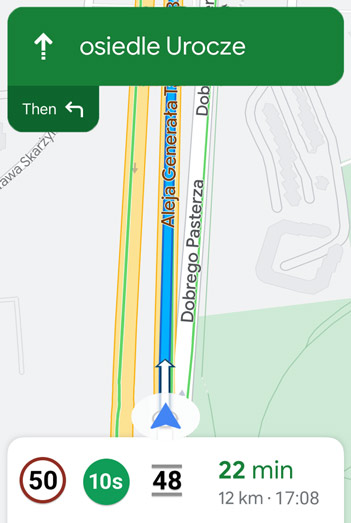

A smartphone application that informs you about the duration of the current red or green light at the next junction.
Traffic Light Assist
A conceptual project to facilitate navigation on the roads as a functionality for Google Maps. The driver is informed by the application about the status (red light or green) at the nearest traffic light. He is given a clue as to whether he should speed up or slow down. When he has stopped at a red light, he receives information on how long the light will turn green. This makes it easier to travel more efficiently and economically.
Current state
Drivers usually do not know when the traffic light will change. It happens that they accelerate only to brake immediately because the light has turned red. There are few intersections where information about the time when the light will change is presented.
Actions are being taken to improve traffic on the roads, such as the already defunct application tested in Hamburg, Traffic Light Assistant (available in Google Play and App Store).
Some new cars have similar built-in systems and display them on the dashboard.
Solution
The expansion of the Google Maps application could be part of the Connected Driving system also known as C-ITS and Car2x / V2X. It enables vehicles to communicate with each other V2V (vehicle - vehicle) and V2I (vehicle-to-infrastructure). Information would be transmitted from all signaling devices and transferred to the system.
Thanks to this information, the application used for navigation, e.g. Google Maps, could display data for the driver how long it will take for the traffic light to change. In addition, the driver would be informed whether his speed is appropriate to make it through the intersection while the light is green or maybe there is no need to accelerate because, for example, the light will soon change to red. The acceleration suggestion would take local speed limits into account.
Metrics
Measuring the effectiveness of the solution
Average gasoline consumption/energy consumption on a given road section. When using Traffic Light Assist compared to not using it. Based on indications from the car or by analyzing vehicle acceleration and braking data from Google Maps.
Speed of reaching the destination. Whenever possible, accelerate to get through the green light. Based on data from the application.
User involvement
Percentage of users who have Traffic Light Assist enabled in the Google Maps application
Number of people who had Traffic Light Assist turned on but opted out of it.
NPS (Net Promoter Score). Number of people recommending turning on the Traffic Light Assist function.
Based on surveys or individual interviews
CES (Customer Effort Score) - the level of effort associated with turning on the Traffic Light Assist function and its configuration.
Seven-point Likert scale.
CSAT (Customer Satisfaction Score) Level of satisfaction with using Traffic Light Assist.
SEQ (Single Ease Question). Difficulty level for activating Traffic Light Assist. Difficulty level of using Traffic Light Assist. Seven-point Likert scale.
Task Success Rate. Percentage of the number of correctly enabled/configured Traffic Light Assist functions in Google Maps settings. Effective use (reading messages and interaction) of Traffic Light Assist by the user while navigation is running.
Personas
Richard Driver
Professional driver, delivery person (courier). Age: 34

Technology savvy: Average, mainly smartphone.
Final goal: what the persona wants to achieve with Traffic Light Assist
Reduce the time to get there.
Motivation: why a person is interested in Traffic Light Assist
He is looking for a way to get around the city more efficiently.
Barriers: what irritates him and may discourage him from using Traffic Light Assist
Having to enter the addresses he will be driving to so that traffic light information is available.
Opportunities: what could increase his interest in Traffic Light Assist
Automatic transfer of addresses to be visited on a given day from his company’s system to Google Maps.
Influence: how to encourage him to use Traffic Light Assist
Showing the benefits of more efficient driving around the city without unnecessary acceleration and sudden braking.
Anna Corporate
An employee commuting to work by car. Age: 32

Technology savvy: Intermediate
Final goal: what the persona wants to achieve with Traffic Light Assist
Shorten your arrival time or make better use of the time you have in the car, e.g. while waiting at traffic lights.
Motivation: why a person is interested in Traffic Light Assist
She wants to navigate the city efficiently. She can use the time waiting for the green light for other tasks because she knows how long she will have to wait.
Barriers: what irritates her and may discourage her from using Traffic Light Assist
Daily route setting, e.g. to work. Remembering to set it up.
Chances: what could increase her interest in Traffic Light Assist
The application will automatically set itself to a given route at a given time.
Influence: how to influence her to use Traffic Light Assist
Justifying the rationality of saving time and energy (fuel, electricity)
Mary Family
A person who usually drives a car on fixed routes. Shopping, visiting friends and family. Age: 38

Technology savvy: Intermediate
Final goal: what the persona wants to achieve with Traffic Light Assist
She wants to shorten the arrival time or make better use of the time she has in the car, e.g. while waiting at the traffic lights.
Motivation: why a person is interested in Traffic Light Assist
She wants to navigate the city efficiently. She can use the time waiting for the green light for other tasks because she knows how long she will have to wait.
Barriers: what irritates her and may discourage her from using Traffic Light Assist
Daily route setting, e.g. to work. Remembering to set it up.
Chances: what could increase her interest in Traffic Light Assist
The application will automatically set itself to a given route at a given time.
Influence: how to influence her to use Traffic Light Assist
Justifying the rationality of saving time and energy (fuel, electricity)
Integration with Google Maps
The user sets the route in Google Maps, the place he wants to get to. On this basis, he is presented with data on the current color of the light on the nearest traffic light and the time to change, e.g. in seconds.
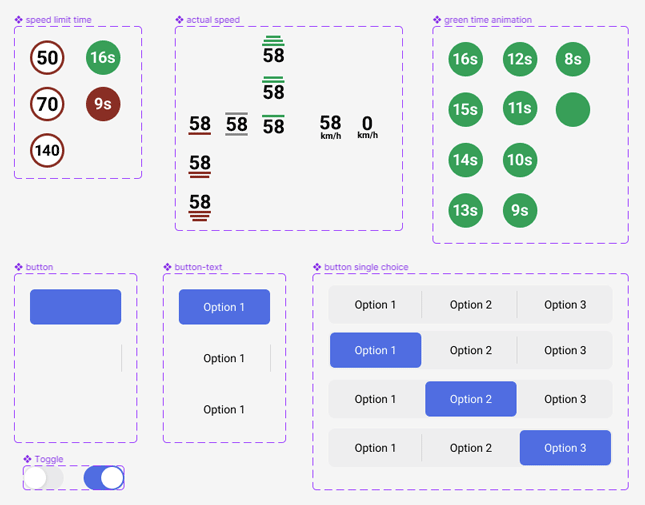
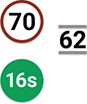
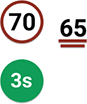
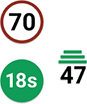
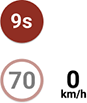
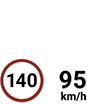
The current speed of the vehicle is displayed in the form of a number of km/h or miles/h depending on the settings in the phone. In addition to the number, the position of the displayed value also changes - the type of graphical representation of the speed (up - fast, down - slow). When stationary, the speed indication is at the bottom of the screen. As the speed increases, it moves up smoothly until it reaches the speed limit icon. When further increasing the speed above the legal limit, the speed indication no longer moves higher.
The current color of the light and the time to change is displayed in the form of a green or red circle - at the same time indicating the current color of the light on the nearest signaling device.
The speed limit for the current area is displayed graphically similar to a road sign (white circle with red outline). The speed limit display function has been operational in Poland since the end of 2023.
The lines above and below the current speed inform whether the driver is driving at the appropriate speed to pass the green light. Green lines above the number - the vehicle should go faster. The red lines below the dash the vehicle should slow down. The number of horizontal lines indicates how much the current speed deviates from the recommended one. One line - not much, three lines - a lot.
Gray lines one at the top and one at the bottom of the current speed mean that the vehicle is traveling at the correct speed to pass the green light.
When the vehicle stops at a traffic light, the application informs you how much time is left before the traffic lights change from red to green.

Project view in Figma application
Prepared components for the project.
Frames and interactions.
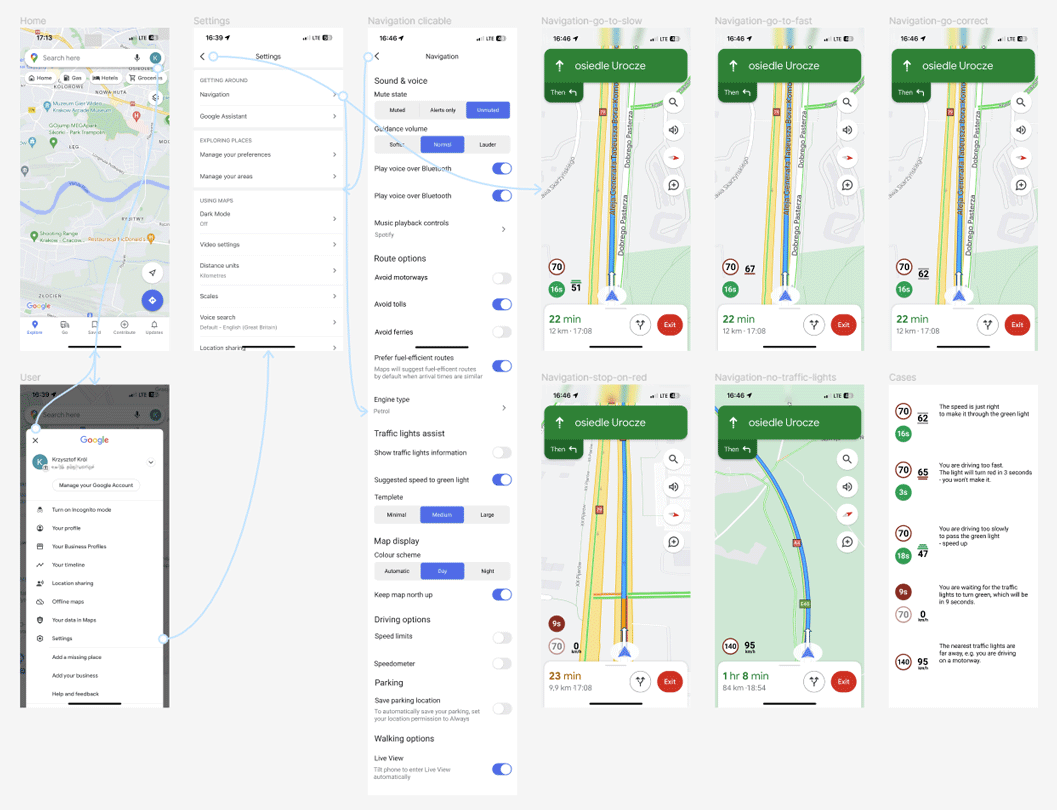
Possible cases
Integration of settings in Google Maps
Clickable interface in Figma
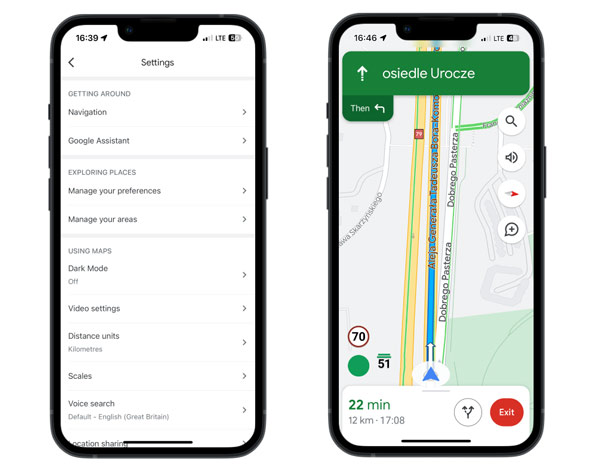
View on the phone screen
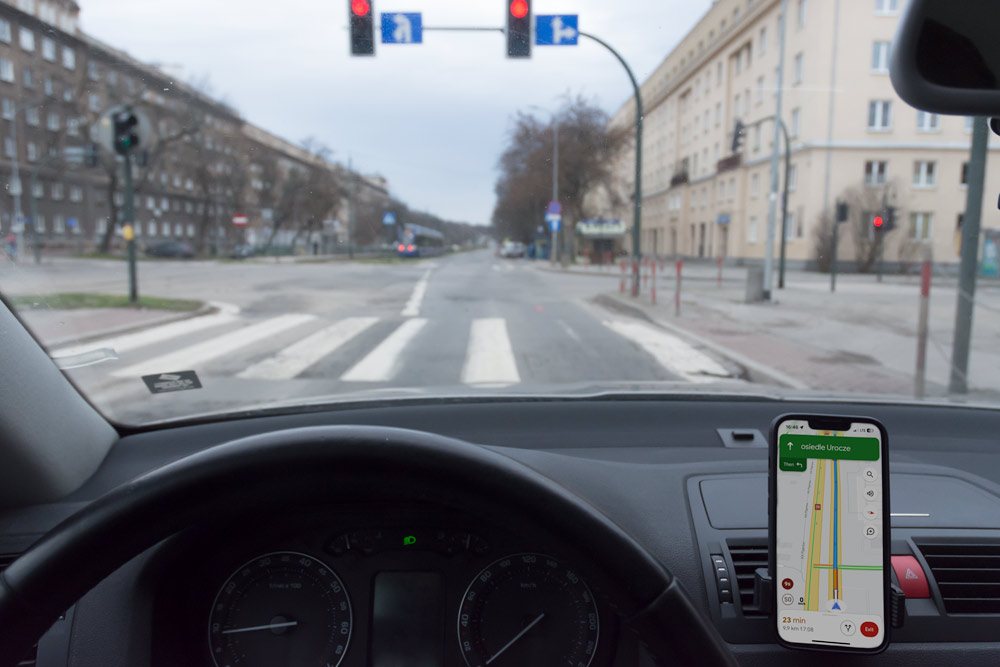
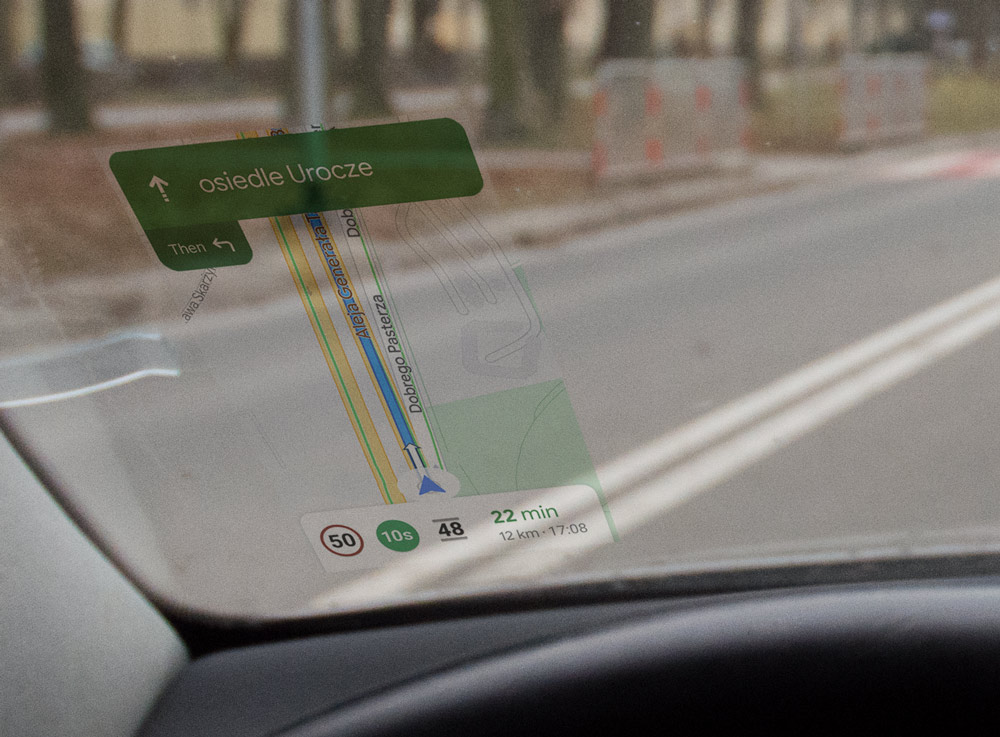
Displaying information on the windshield
Navigation and traffic light information can also be displayed on the vehicle's windscreen. In this form, the image has different proportions - it is lowered and widened. So as not to obscure visibility. There are also no clickable items available in the app on your phone. Icons with speed limit, light duration and current speed are placed in one line. In this version of the interface, the current speed does not change its vertical position depending on the speed, only appropriate lines are added at the bottom and top depending on whether the speed is appropriate, too fast, too slow.